       
 |
 |
|
|
|
|
|
|
 |
 |

|
|
Exchange 2010 FAQs
General|Outlook|Archive and Retention|Voicemail|Mobile Devices
Outlook 2011|Outlook Web App|Resource Accounts|Mac
General
Q: What are some of the new features and changes in Exchange 2010?
A: Please click here for a quick guide to the most significant changes you will see when your account is migrated to Exchange 2010.
Q: After my migration to Exchange 2010 it appears that valid messages are being sent to my junk email folder?
A: Be sure to configure your junk mail filter settings from either your Outlook 2010 or Outlook 2007 client and from outlook.depaul.edu. From the Outlook client, the junk mail settings are located on the Home ribbon tab within the Delete group. You can find the junk mail settings in outlook.depaul.edu from the Options>See All Options>Block or Allow menu.
Outlook
Q: I received this warning: “Allow this website to configure user@depaul.edu server settings? https://autodiscover.depaul.edu/autodiscover/autodiscover.xml”. What should I do?
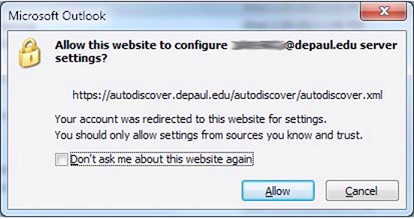
A: Autodiscover is a service that automatically configures and updates your Outlook profile. Please check the “Don’t ask me about this website again” checkbox and click Allow.
Q: Why am I getting a mail tip telling me the account doesn’t exist for the user in the address book?

A: In some instances, you will see this message when AutoComplete cache gets corrupt. AutoComplete feature will suggest names as you type an e-mail address based on names you have typed before. There are two ways to clear AutoComplete cache:
- From Outlook, Go to File > Options > Mail and scroll down and click on "Empty Auto-Complete List". Then restart Outlook.
-
Start Outlook with /ClearAutoCompleteCache switch:
- Close Outlook. Click Start, then type in Outlook /ClearAutoCompleteCache and press Ok.
Q: My Outlook client is prompting me for a password in the lower right-hand corner of the Outlook window, or when I try to synchronize my outlook client manually (via the Send/Receive button in Outlook 2011 for Mac)?
A: If you use the Aventail VPN client for day to day business on your workstation, your VPN client may have timed out due to inactivity overnight, and segmented the connection your computer had to the Exchange servers. Restart your client to resolve the connectivity issue. If this does not solve your issue, contact the help desk at x28765.
Archive & Retention
Q: Will the auto-archive feature still be available with Exchange 2010?
A: The auto-archive features are not available in Exchange 2010. All user email account messages will be retained within an online archive for 5 years from the messages original received date. You will have access your online archive from outlook.depaul.edu as well as your Outlook 2010 or Outlook 2007 desktop client.
Q: Can I import a .pst file into Outlook 2010?
A: The option to import old .pst files is available in Outlook 2010. Simply, click ‘File’ open then select ‘Outlook Data File’. Browse to the directory where your .pst file is located and click ‘Ok’.
Q: Can I access my .pst file in Outlook 2010?
A: .pst files opened in Outlook 2010 will appear as an additional group of folders within your current profile. Note that creating new Outlook 2010 profiles requires you to reopen all .pst files.
Voicemail
Q: What do I do if I don't know my voicemail password (PIN number)?
A: To reset your voicemail password (PIN number): log into Outlook Web App (http://outlook.depaul.edu) > Go to Options > See All Options… > Phone > Click 'Reset my voice mail PIN…' > Press 'OK' to receive your temporary PIN in e-mail.
Q: How can I switch from using the Voice User Interface (voice commands) to interact with the system to the Touchtone User Interface (telephone key commands)?
A: To temporarily switch from the voice to the touchtone user interface, press 0 - 0 (zero twice) at anytime after logging into your voicemail. This will enable touchtone recognition for the duration of your current call. To permanently switch from the voice to the touchtone user interface, login to your voicemail, say "personal options" and then press 4. This will enable the touchtone user interface for all future calls into voicemail. If you ever want to switch back to the voice user interface, login to your voicemail, then press 6 – 4 (6 followed by 4).
Q: How do I transfer a caller directly to another person’s voicemail?
A: Follow these steps to transfer a caller directly to another person’s voicemail:
1. Select Transfer
2. Dial ext. 26600
3. When prompted, enter the extension of the person’s voicemail that you are transferring the caller to
4. Select Transfer
Q: When I call into voicemail, I get a message that says “…the person you are trying to reach does not have a valid voicemail box on our system.” What should I do?
A: This person is not setup with voicemail. Please check the voicemail access number that you are dialing. Dial ext. 2MAIL from on campus or 312-362-6245 from off campus.
Q: Can I save a voicemail message?
A: Voicemails are saved in the system just like emails. Unless you select delete from the Outlook client, outlook.depaul.edu, or the phone, the voicemail (email) will remain “saved” and available for the default retention period.
Q: Can I move my voicemail to a different folder in my inbox?
A: As long as the email has not been moved to an archive folder (online archive or .pst), you will be able to access it from the phone no matter where you move it in your inbox.
Q: I put a voicemail message in my online archive, why can't I get to it on my phone?
A: Voicemails are only accessible from your inbox and will not be available from your online archive or a personal archive (.pst file).
Q: When I reply to a voicemail email I have to manually enter in the email address for the person who left me the voicemail. Why do I have to do this?
A: The most common cause for this is that the caller who left the voicemail is still on the old voicemail system (Exchange 2003). This is a limitation of the compatibility between the two systems.
Q: How do I turn off the missed call notifications?
A: This notification can be turned off by logging into your email account at outlook.depaul.edu and navigating to Options > See All Options… > Phone
Q: How do I turn off the voicemail text preview feature?
A: This feature can be turned off by logging into your email account at outlook.depaul.edu and navigating to Options > See All Options… > Phone
Q: What happens if I don't record a greeting?
A: The system will read your last name followed by your first name for your voicemail greeting.
Mobile Devices
Q: After my mailbox is migrated to Exchange 2010, will I be required to re-sync my mobile device? (Blackberry, Android, Windows, or iOS)
A: You will not be required to re-sync your devices after the Exchange 2010 migration. However, if you are experiencing issues with any DePaul Information Services supported mobile device after the upgrade please contact the TSC at extension 28765.
Outlook 2011
Q: How do I import my Entourage 2004 or 2008 identity to Outlook 2011?
A: Please visit the following link for information on importing data from Entourage into Outlook 2011.
Outlook Web App (outlook.depaul.edu)
Q: I am not able to create an email signature from Outlook Web App (outlook.depaul.edu)
A: Due to an existing issue, email signature box is disabled in Chrome and Safari browsers. To create an email signature to be used in OWA, you can:
-
Use an alternate browser to create an email signature (Internet Explorer or Mozilla Firefox).
-
Switch to the light version of OWA, create a signature there, then switch back to full mode:
-
Log into outlook.depaul.edu
-
Go to Options > See All Options > Settings > General >Accessibility > check the box for ‘Use blind and low vision experience’ and click Save.
-
Sign out of outlook.depaul.edu
-
Log back into outlook.depaul.edu
-
Go to Options and create your email signature, and click Save.
-
Go to Options > Accessibility > uncheck the box for ‘Use blind and low version experience’ > click Save.
-
Sign out of outlook.depaul.edu.
Q: When I try to schedule a room for a meeting through outlook.depaul.edu, I receive an error saying “Appointment Not Sent as Resource”.
A: When you create a meeting request in outlook.depaul.edu, manually type in a room name into the Location field prior to sending the invitation.
Q: What are the supported browsers for Outlook Web App?
A: To use the complete set of features available in Outlook Web App, you can use the following browsers on a computer running Windows XP or Windows 7:
- Internet Explorer 7 and later versions.
- Firefox 3.0.1 and later versions.
- Chrome 3.0.195.27 and later versions.
On a computer running Mac OS X 10.5 and later versions, you can use:
- Safari 3.1 and later versions.
- Firefox 3.0.1 and later versions.
On a computer running Linux, you can use Firefox 3.0.1 and later versions.
Resource Accounts
Q: After I upgraded to Exchange 2010, why are there are additional mailboxes opened within my profile?
A: If you are an owner of a resource account or have been granted full access permissions to a resource mailbox, they will automatically appear opened within your Outlook 2010 or Outlook 2007 client.
Mac
Q: How do I change the default mail client on Mac OSX?
A: If you wish to change the mail application your Mac uses when clicking on email links (from web pages) or when you issue a "send via email" command from the operating system or other application, you can do so through the following procedure:
-
Launch Mail.app from the Dock or from /Applications.
-
Go to the "Mail" menu, then select "Preferences".
-
On the "General" tab, you can select your Mac's Default email reader from the drop down list at the top of the tab.
General|Outlook|Archive and Retention|Voicemail|Mobile Devices
Outlook 2011|Outlook Web App|Resource Accounts|Mac
|
|
|