 |
 |
|
|
|
|
|
|
 |
 |

|
|
Table of Contents:
-
Overview
-
Process to convert current fax service to e-Fax
-
Options for Sending e-faxes:
-
Outbound Faxing: Electronic Documents
-
Outbound Faxing: Paper Documents
-
Options for Receiving Faxes
-
FAQ’s
-
Appendix A: Fax Coversheet Options
-
Appendix B: Recommended Scanners
-
Appendix C: IS Recommendations for E-Fax Migration
-
Appendix D: Departmental Migration Form
-
Overview:
Information Services has implemented an E-Fax Service which has multiple benefits to the institution.
Some of the benefits that e-Fax provides are as follows:
-
e- Fax offers you the convenience of sending, receiving, and managing faxes directly from your desktop computer.
-
You no longer have to print an electronic document in order to fax it.
-
e- Fax provides better security for confidential documents.
-
e-Fax reduces the cost and waste of paper, toner cartridges and fax machines for your department
The e-Fax Service is designed to replace the traditional fax machines that exist in offices around the university. This document gives you an overview of the options available for receiving and sending e-faxes as well as details related to the deployment process.
-
Process to convert existing fax to an e-Fax:
These are the steps you will go through as we initiate, deploy and complete this project for your department. This process would be best completed by allocating a single representative from your department to work with IS for the purpose of migrating department faxes via the steps described below:
-
Review the options for receiving and sending faxes listed below (in section III).
-
Decide which options best meet your department’s needs. How would you like to receive faxes? How would you prefer to send faxes? Consider details like what printers, resource accounts, and individuals need to be a part of your e-fax environment. If this is overwhelming and you need some help deciding which options are the right ones for you, please email netconnect@depaul.edu or see our general recommendations in Appendix C
-
Select the cover sheet you would like to use for your department. This cover sheet will appear on the faxes your department sends. Your department’s official logo will be placed on the cover sheet. Appendix A shows the different cover sheets options that are available.
-
Complete the Departmental Migration form: This form includes information such as billing code, department details, and most importantly all the people in your department who should have the ability to send faxes from their email. See Appendix D.
-
Setting up the system: Information Services sets up your e-Fax system
-
Testing phase: We will need your help to make sure everything is working as you expect it to.
-
Activate new system and remove old, unused components.
-
Options for sending e-Faxes:
-
Outbound Faxing - Electronic Documents:
Follow these instructions to fax an electronic document via email:
-
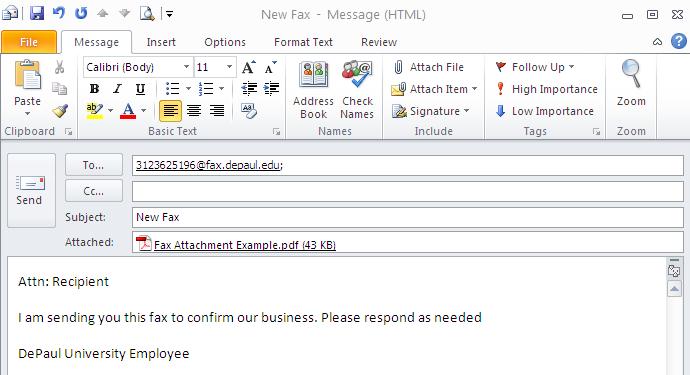
Create a new email
-
In the “To” field, enter the fax number that you wish to send the fax to. Complete the address by appending @fax.depaul.edu to it. Example: 3123628000@fax.depaul.edu
-
Attach the document(s) you wish to fax to the email. Documents can currently be sent in the following formats:
-
PDF
-
TIFF
-
Word document
-
Excel document
-
Other document types can be added by request, please email: netconnect@depaul.edu
-
If you enter text in the “subject” field and/or enter text in the body of the email, a cover sheet will be automatically attached to the fax you are sending (note: the design of this cover sheet is selected by your department)
-
Click “Send” to send the fax
-
Outbound Faxing - Paper Documents:
Paper documents need to be converted to a digital format before they can be sent via E-Fax.
-
You can convert paper document to digital format with a desktop scanner (see IS recommendations for scanners Appendix B) and then send it as an attachment through your email client (process described above in section III)
-
If you have a scanner that has the ability to email, then you can scan and fax your paper documents simultaneously by utilizing the destination fax number and @fax.depaul.edu address. Remember to include your email address in the ‘From:’ field so you will receive the confirmation email.
-
Please reference Appendix B for scanners that IS recommends. If you need assistance selecting a desktop or network scanner, please email netconnect@depaul.edu.
Options for Receiving Faxes:
There are several options available for receiving faxes through the E-Fax system.
-
Email option 1- You can receive a fax as a PDF or TIFF through a departmental email resource.
For example, if currently incoming faxes are managed (received and distributed) by the front desk staff then:
-
A departmental email resource will be setup (for e.g. mydepartment@depaul.edu)* for that fax number
-
The front desk staff (or additional users) will be given access to this email resource
-
All faxes that are sent to that fax number will be setup to go to the inbox of this departmental email resource and therefore the front desk would receive the incoming faxes
-
The front desk staff would distribute the received emails by forwarding them to the appropriate recipients
*See FAQ for details on how to create a departmental email resource
-
Email option 2- You can receive a fax as a PDF or TIFF through an individual email resource. An individual’s email address can have a unique fax number associated with it, and all faxes received at that number would be directed to the individual’s email inbox.
-
Network share- Faxes for a department can be setup to save directly to a shared folder on the W:\ drive. Users with access to the network shared folder can then manage the incoming faxes by monitoring the contents of the folder.
-
Printer- Faxes for a department can be setup to be printed directly to a network printer on receipt
Frequently Asked Questions:
-
How do I add new employees to the e-Fax service?
When a new employee is hired the supervisor generally fills out the New Email / Network Access form requesting email and providing the employees with a phone number, etc.
This form is located at https://www.is.depaul.edu/communication/email/outlook_request.asp.
In order to provide newly hired employees access to the e-Fax service the supervisor will fill out the fax number section of this form.
-
Will my fax number change?
The e-Fax system will be setup using a new bank of numbers i.e. (312) 476-XXXX. This provides uniformity and allows Information Services the ability to distinguish between fax numbers and phone lines. On conversion to e-Fax your department will be assigned a new fax number. However, your old fax number will continue to function (your existing fax number will be forwarded to the new line) as it does today. We do request that when you update your stationary, business cards, etc. you use the new fax number.
-
Can the receiving party tell whether I have faxed a document via a traditional fax machine or via e-fax?
The receiver cannot tell whether the faxed document was sent via a fax machine or via e-fax.
-
How do I create a departmental email resource?
-
Go to is.depaul.edu
-
Click on “Resources and References”
-
Click on “Forms”
-
Click on “Email Resource Request”
-
Complete form and submit
-
Netadmin will create the requested resource and send you a detailed instructional document on how to access the newly created resource.
-
I am unable to send a fax via my email account, how can I get this working?
At the time of implementation of E-Fax, each department’s budget manager will fill out the “Departmental Migration Form” which includes a list of people that should have this ability. If you are included in this form your email account will be given faxing permissions. If you are not included, you will need to contact your budget manager to request e-faxing permissions.
-
How does the fax look on the receiving end?
-
The subject line of your email becomes the Subject: or Re: line of the fax cover sheet.
-
The text you entered in the body of the email becomes the Comments: or Details: on the cover sheet.
-
Your name, phone number, fax number, and email address will appear on the fax cover sheet
Appendix A: Fax Coversheet Options
View Options (MS Word Doc)
Appendix B: Recommended Scanners
-
Network Scanner: Kodak Scan Station 500
Description: Ethernet 10Base-T/100Base-TX, Document scanner, 30 ppm max scan speed B/W, 30 ppm max scan speed color, 600 dpi max H-optical resolution, 600 dpi max V-optical resolution, 30-bit color, 3 months warranty. This scanner is supported by Information Services.
-
Desktop Scanner: Fujitsu ScanSnap S1500
Description: Hi-Speed USB, Document scanner, 20 ppm max scan speed B/W, 20 ppm max scan speed color, 600 dpi max H-optical resolution, 600 dpi max V-optical resolution, 1 year warranty
-
Desktop Scanner: Fujitsu ScanSnap S1300
Description: Hi-Speed USB, Mobile Document scanner, 8 ppm max scan speed B/W, 8 ppm max scan color, 600dpi max H-optical resolution, 600 dpi max V-optical resolution, 1 year warranty
Appendix C: Some Recommendations for E-Fax Migration
|
Option
|
Recommendation
|
|
Inbound Fax Delivery
|
Create a Departmental Email Resource, those with access to the resource will forward messages to the intended recipients
|
|
Outbound Faxing
|
Give permissions to all full-time employees
|
|
Scanner
|
Have a few desktop scanners in strategic locations in your department. If you do a lot of faxing you may want to consider the Network Scanner
|
|
Coversheet
|
It is really up to you, no recommendation. Please ensure that the logo provided to Information Services is your department’s official logo.
|
Appendix D: Departmental Migration Form (*please fill out a separate form for each fax number)
View Form (MS Word Doc)
|
|
|